// HACKER NEWS — CYBERSECURITY
Introducing Ad Blocker for Firefox on iOS
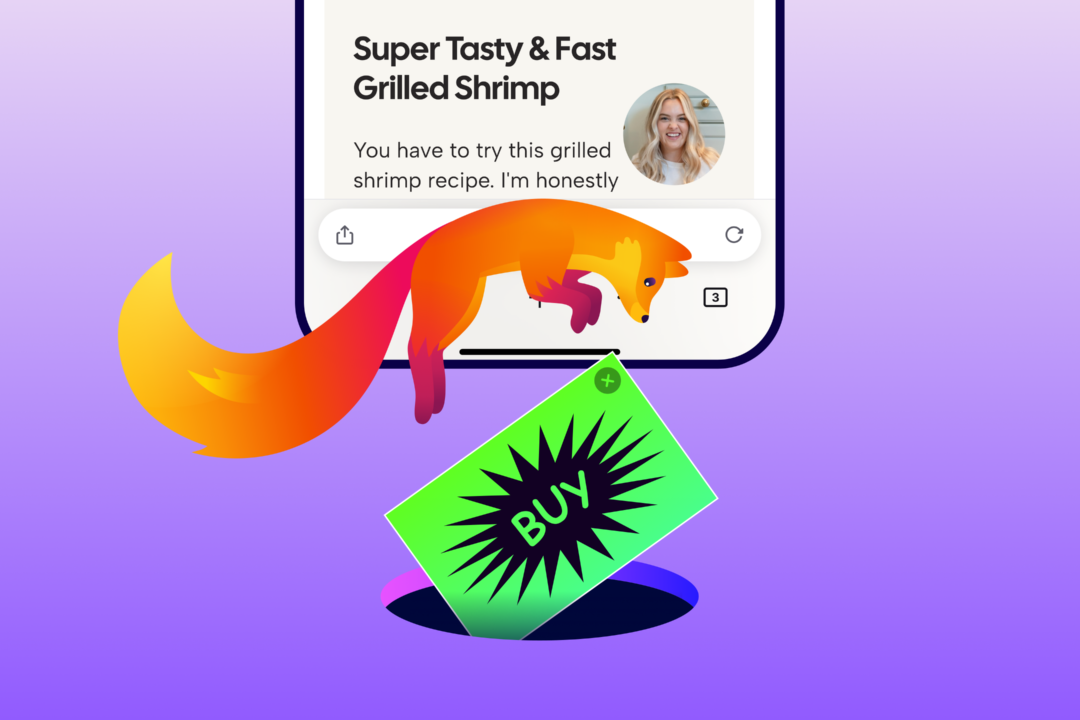
There’s only so much room on your screen. Pop-ups, overlays, and ads can take over fast, getting between you and what you came to do.
That’s where Ad Blocker for Firefox on iOS comes in: a built-in option that blocks many third-party ads and ad-related trackers before they load, helping reduce clutter and distractions while you browse.
Ad Blocker uses Apple’s WebKit Content Blocker technology and the EasyList filter list to determine what gets blocked. There’s no separate extension to install, and you can turn it on in Settings > Browsing > Ad Blocker. It’s off by default, so you decide whether to use it.
Ad Blocker won’t block every ad. Ads served directly by the site you’re visiting and ads shown in search results will still appear. Sponsored shortcuts and other sponsored content shown by Firefox when you open a new tab are separate from ads on the web pages you visit, so Ad Blocker doesn’t affect them.
Ad Blocker works alongside the privacy protections already built into Firefox, including Enhanced Tracking Protection, which blocks many trackers and limits tracking across the web.
On Desktop and Android, Firefox already supports a strong ecosystem of ad-blocking and privacy extensions, giving people the flexibility to choose the tools that work best for them. We value that ecosystem and will keep supporting it.
iOS works differently. Extensions aren’t available in the same way, and we know people want more options. Bringing ad blocking to Firefox on iOS meant building it directly into the browser. Giving people choice in how they experience the web is important to us. Advertising helps fund much of the open web, supporting the publishers, creators and websites people rely on. We also know that ads can sometimes crowd the screen or interrupt what you’re trying to do.
That’s why Ad Blocker is optional: you decide whether it’s part of how you browse. It’s part of a broader approach across Firefox to give you more control over your experience, from the extensions you use to how AI shows up in your browser.
To turn on Ad Blocker, go to Settings > Browsing > Ad Blocker.
If you find an ad you expected to be blocked, a site that behaves strangely or something we should improve, let us know on Mozilla Connect.