// TOM'S HARDWARE US — HARDWARE & GADGET
One easy change makes Microsoft's Surface Laptop Ultra with RTX Spark a better gaming system
We define custom 3:2 resolutions to give DLSS an easier time
When you purchase through links on our site, we may earn an affiliate commission. Here’s how it works.
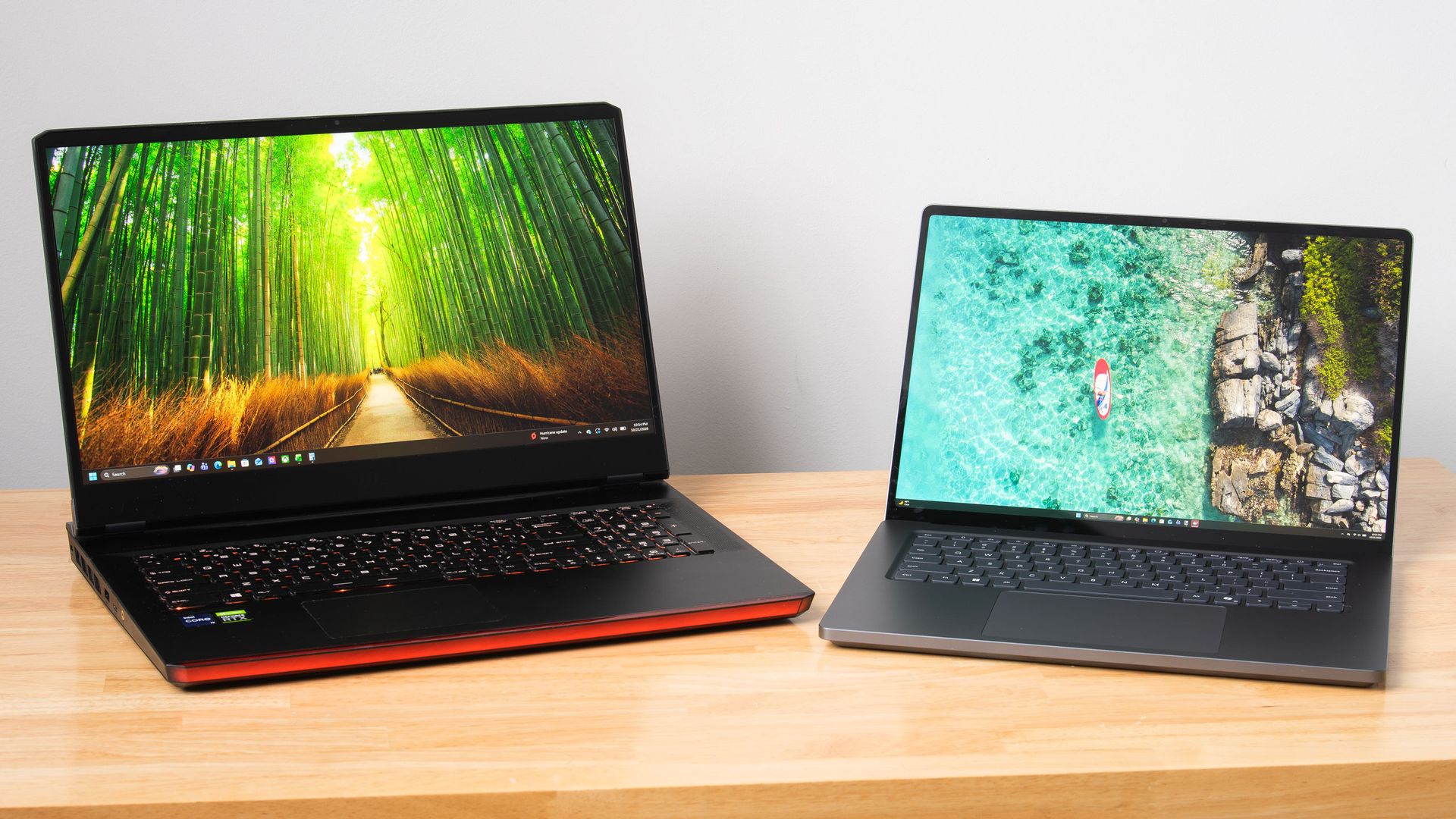
Nvidia's RTX Spark platform puts local AI inference and content creation first, but Microsoft's Surface Laptop Ultra really wants to game, too. The vented keyboard keeps the critical WASD keys cool under load by design, the smooth 120Hz screen can get as bright as 2000 nits with HDR games, and the built-in speakers may be the best I've ever heard on a laptop, period.
There's just one problem: that 3270x2180 screen asks a lot of DLSS upscaling. The computation that DLSS performs doesn't come for free, and the load increases with higher output resolutions. This is especially relevant with the Surface Laptop Ultra's high-density panel, which has just 14% fewer pixels than a 16:9 4K display.
The Surface's unusual 3:2 aspect ratio (at least compared to the average gaming laptop) also means that scaling content up to fill the screen isn't straightforward in many games. 16:9 and 16:10 content gets stretched vertically, causing obvious distortion of character models and objects like tires. And if you use windowed mode instead, playing in a 16:9 or 16:10 window on a relatively small screen like this quickly tires the eyes.
The thing is, all this is easy to solve—easy enough, in fact, that I'm surprised I had to do it myself at all.
Microsoft seems aware that lower 3:2 resolutions are useful for this system, as it put a 1600x1024 custom resolution in the list of display modes that's slightly less than half of native on both axes. But at roughly 1.6 megapixels in total, that image offers less resolution than even a 1920x1080 display does. Scaling up from such a low-res baseline on the Surface screen results in a noticeably soft image even before we dial in DLSS.
What we really want, for reasons of both performance and adequate sharpness, is a 3:2 resolution that comes close to the 2.07 megapixels that 1920x1080 yields. Some quick math and rounding to whole numbers gives us 1764x1176 as an optimal target.
With those ideal dimensions in hand, the next step was to create a custom resolution to match. The Nvidia Control Panel doesn't work on Windows on Arm, but we can still use the Nvidia App to set custom resolutions.
After diving into the System tab and expanding the Display Properties pane, I found the "Customize Resolution" button to open an editor to that end and added 1764x1176 at 120Hz. I then tested it and confirmed that it worked as a supported display mode. (If you want to match the 3.7 MP of 2560x1440, set up a 2352x1568 resolution while you’re at it.)