// ENGADGET — MOBILE & WEB
The weird reasons why your ethernet cable might be slower than your Wi-Fi
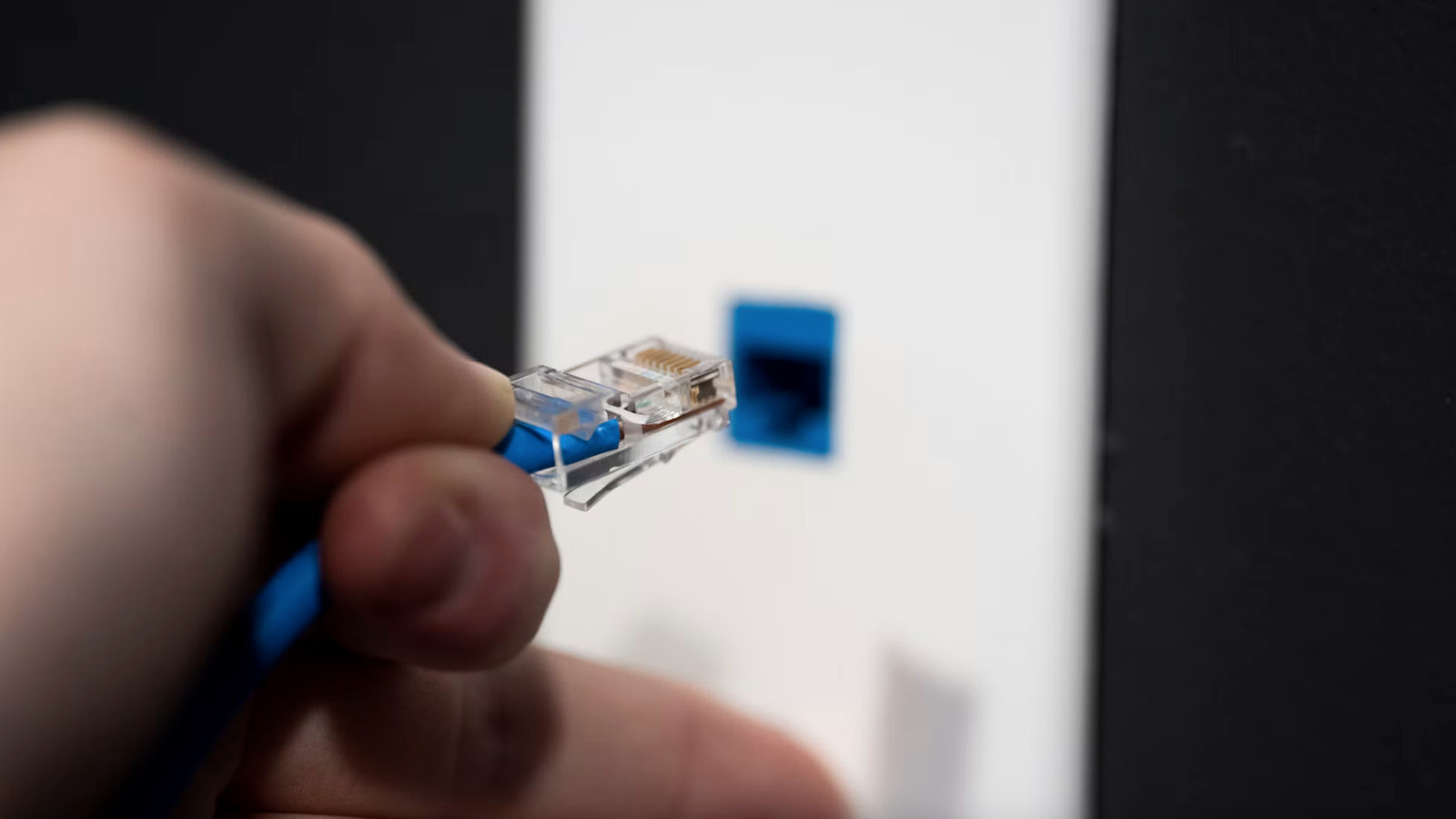
It could be hardware, software or something else entirely.
Ethernet cables, otherwise called network cables, are supposed to be two or three times faster than Wi-Fi. That's one of the primary benefits of going with a wired connection. However, that's not always true in a real world setting. Many users have noticed that ethernet cables can actually be slower than Wi-Fi.
How is that even possible? In rare cases, it's simply a matter of a fast wireless connection that outpaces Ethernet speeds. Wireless routers have come a long way in the past decade, particularly with the introduction of protocols like Wi-Fi 7.
It's not always greyhound-like wireless speeds. There are a host of reasons why an ethernet connection could be slower than its wireless counterpart. Some of this is hardware based, as in the wire itself, and some is connected to software issues. Let's get into the how and why of it all so you can continue browsing and streaming without any speed hiccups.
Ethernet cables have been around for decades. The technology keeps progressing, so not all cables are equal. Using old and out-of-date cables will absolutely cap the speed of any wired connection. A good rule of thumb? Make sure to get at least a Cat5 cable or better. If you don't know what kind of cables you're using, look along the outer plastic sheath. There should be some small text printed that explicitly lists the category.
Category isn't the only thing that matters. The quality is just as important, as some manufacturers cut corners. I'm not recommending splurging on the most expensive cables around, but there are some things to look out for. As previously mentioned, take a look at the category rating. Also, avoid copper-clad aluminum (CCA) cables. Go for pure copper cables instead. CCA cables tend to degrade quickly and break easily. You should also check for the certification, as reputable brands test and certify their cables to meet TIE/EIA standards. This should also be written somewhere on the sheath.
A lot of things can go wrong with ethernet cables, particularly if they're on the older side. For instance, these cables typically include four twisted pairs of wires. If one of the pairs is incorrectly twisted, it'll impact the overall speed. The same goes if the sheath is damaged, as this could eventually lead to damaged wires. A good troubleshooting step here is to simply try out different ethernet cables and conduct network speed tests.
The port itself can cause slow speeds, even if the ethernet cables are in tip-top shape. Any type of damage to the internal contacts could limit speed or render the port unusable. This can be tough to suss out, as swapping out ethernet ports isn't exactly feasible. Check the connection port on the router and look for a solid or blinking green light. If there are no lights at all, that likely indicates an issue with either the port or the cable. Swapping out the cables will narrow it down. If the router and computer have multiple ports, try using one of the available ones and run a speed test. A final option? Plug the cable into another device and check things out.
The speed could be impacted if you're using ancient drivers for the router, ethernet adapter or network card. This is really easy to miss, as updating random drivers is likely not on your list of most important tasks. Start with the router and move on from there, testing the speed at every step. This is especially important if you recently updated the operating system of the source device.
There are several settings that can impact ethernet speeds. Windows users can check out the aggregated link speed in the Network and Internet settings tab, and Apple users can check the Network page. Cross-reference this speed against what you're paying an ISP for. If you're paying for 1000Mbps and the link speed shows just 100Mbps, you know there's a problem somewhere.