// ENGADGET — HARDWARE & GADGET
How to upgrade the graphics card in your PC
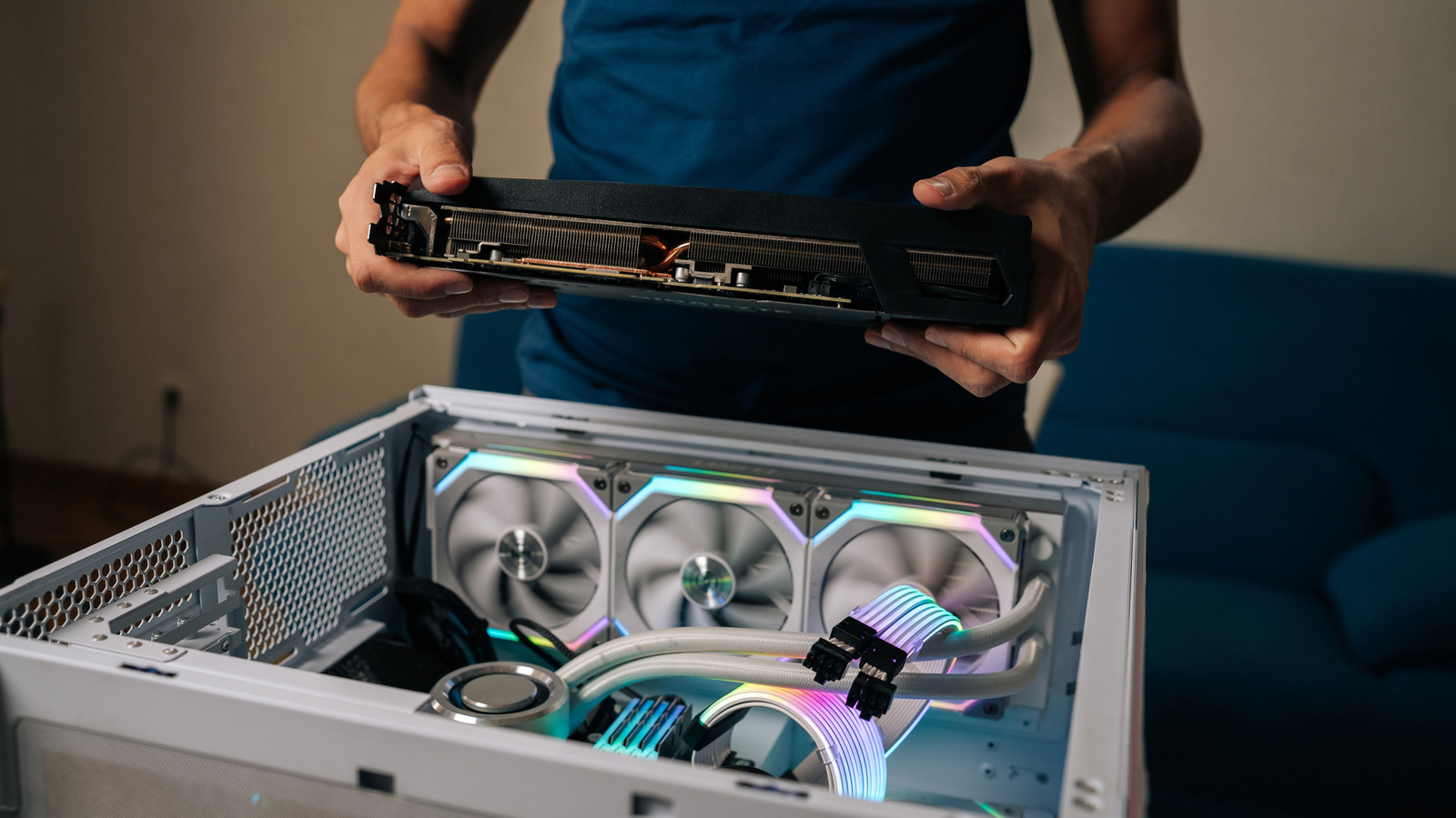
Assess your existing hardware to avoid potential bottlenecks.
A graphics card upgrade can offer a substantial performance uplift for your PC, allowing it to run games at higher resolutions, deliver more frames and take advantage of newer technologies like ray tracing and upscaling. While the process of installing a new graphics card is fairly simple, involving little more than removing the existing card and slotting a new one into the motherboard's PCIe slot, upgrading to a new graphics card usually comes with its own set of considerations that affect its performance and compatibility.
Depending on the graphics card you plan on getting, you may be required to purchase a new power supply unit to meet its power requirements, switch out your current PC case if it lacks room for the new card and possibly even upgrade your processor if it ends up being a bottleneck to the GPU.
A successful graphics card upgrade, therefore, begins with assessing your existing components and ensuring their compatibility. The installation itself is rather straightforward — swap out the cards, plug in the necessary PCIe power cables and connect your display.
Several factors are worth considering when upgrading to a new graphics card, and the power supply unit tops that list. Two graphics cards that seem identical on paper may have different power requirements. This is because board partners often sell variants that may be tuned for higher performance at the cost of additional power draw.
So, it's worth examining the power requirements of the exact model you plan on purchasing. Pay special attention to the recommended PSU wattage and the number of PCIe power connectors required by the model. If your existing power supply unit doesn't meet the recommended wattage, that's an additional purchase on top of the GPU.
Similarly, check your PC case to ensure it has sufficient room for the new GPU. A compatible case is one that has enough clearance for the card and its power connectors without obstructing the side panel. It should also have enough space between the card and any front-mounted radiator or fans.
The CPU is the next component worth paying attention to, as a weaker processor could limit your card's performance. If you plan on playing games at higher frame rates, you might need a faster CPU that can keep up with the card. However, a CPU upgrade isn't as critical as a PSU or case.
Your display is also a non-critical consideration, although a high refresh rate panel is recommended to take advantage of the frames your new graphics card can push.
Start by powering down your PC and then disconnecting the power cord and display cables. Lay your PC case on a flat surface with the motherboard facing up. Remove the side panel and disconnect the PCIe power connectors from your existing GPU, then remove the screws securing the card to the rear of the case. Before pulling the card out, release the PCIe slot latch. Now, gently pull the card from the slot and set it aside.