// HACKER NEWS — CYBERSECURITY
Roboflow Playground: Try and Compare 30 Computer Vision Models
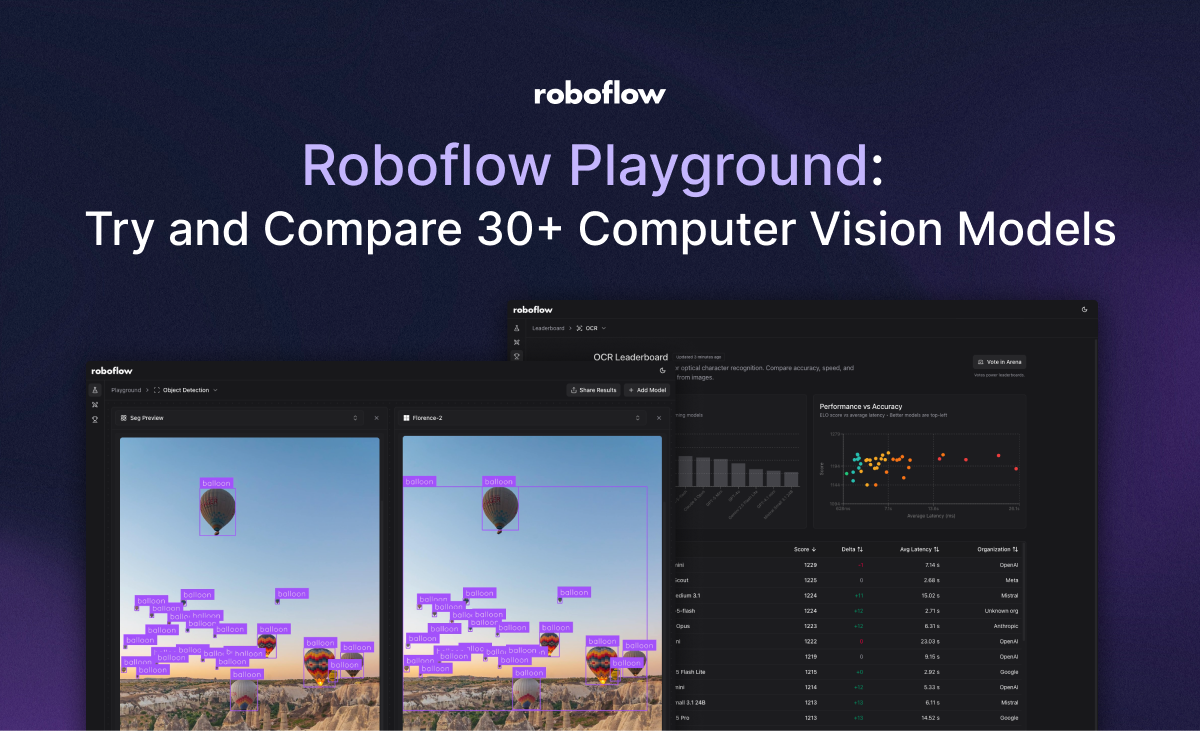
Roboflow Playground lets you run the same image and prompt across up to five zero-shot computer vision models side by side, covering more than 30 models from Anthropic, OpenAI, Meta, Google, and open-source providers like Florence-2. Supported tasks include object detection, image classification, OCR, captioning, and open-prompt visual question answering. It removes the setup cost of provisioning APIs or infrastructure individually, so you can compare model outputs directly before committing to one for your project.
Comparing zero-shot computer vision models – from Claude Opus 4.7 to Gemini 3.1 Pro – can be daunting. Researching the latest models to try, writing the code to call cloud APIs, provisioning infrastructure for open weight models – all of this takes time. Before you know it, a new model is out, ready for use.
With that in mind, we are excited to announce a tool to help you try, compare, and evaluate over 30 popular zero-shot vision models: Roboflow Playground.
In this blog post, we are going to walk through what Roboflow Playground is, and how to use it to test new vision models.
Roboflow Playground lets you compare, side-by-side, the latest computer vision models.
With Playground, you can run the same image and prompt across up to five vision models at once. Supported models range from the latest VLMs by Anthropic, Meta, OpenAI, and Google, all the way to open source models like Florence-2 and YOLO World.
To get started, go to the Roboflow Playground website. You will then be able to choose what vision task you want to run. As of today, Playground supports:
You can then choose up to five models to compare. Once you have chosen a task and a model, you can upload an image and set prompts.
The models available depend on the chosen task type. For example, you can use Florence-2 and Seg Preview for object detection because both models support object detection, but you can't use these models for VQA because they don't support this task.
To choose a task, click “Object detection” from the list of tasks dropdown and select your chosen task: